📱 Native Android Mobile App
The native Android app provides optional biometric security, bank and Wallet notification capture, listener transparency, zero-based envelope budgeting, and interactive financial charts. Optional SMS capture is available too.
1. Download & Installation
Install the app from Google Play. Your account and data are the same on web and Android.
- Open the Family Budget Tracker listing on Google Play (the Download button on family-budget.getdigraw.com opens it).
- Tap Install.
- Open Family Budget and log in with your email or Google account.
Still on the old direct APK? Install the Google Play app, sign in with the same account, then uninstall the APK. Your data is on your account, so nothing is lost.
2. Biometric App Lock (Fingerprint & Face ID)
Protect your financial privacy whenever you hand your phone to someone else.
- In the mobile app, tap Settings in the bottom navigation.
- Toggle "Biometric app lock".
- Confirm with your fingerprint or face scan.
- Security Coverage: Biometric authentication is enforced both on initial app launch and whenever the app resumes from the background.
3. Bank Notification Capture & Listener Transparency
With explicit Android permission, Family Budget Tracker can inspect notifications from bank and Wallet packages selected in Settings and use qualifying alerts to propose or create transactions.
Bank and Wallet alert processing
When a selected bank or Wallet app posts a notification, Family Budget Tracker:
- Checks eligibility on the phone: Alerts without a currency-qualified amount stay on the device and do not enter server processing.
- Classifies eligible alerts: Alert details are sent securely to Family Budget Tracker and may be processed once by Google Gemini for extraction and categorisation.
- Creates only confirmed transactions: Balance, pending, declined, security, promotion, and other non-transaction alerts do not create ledger rows. Uncertain events require review.
- Prevents duplicate work: Replayed events reuse their stored structured result so retries do not repeat classification or create duplicate transactions.
Listener Transparency and privacy controls
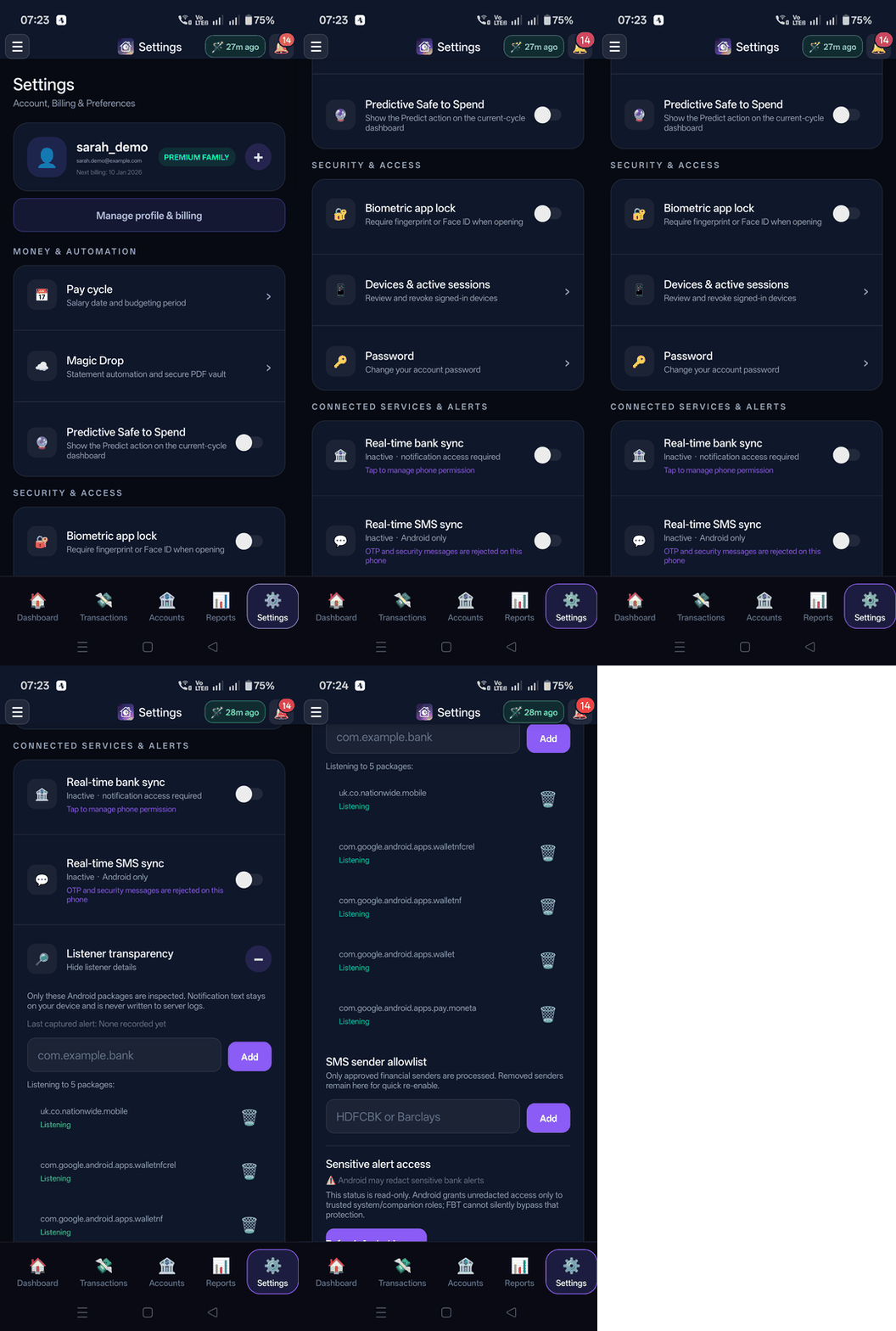
Listener Transparency is available under Settings → Connected Services & Alerts → Listener transparency:
Content from packages outside the configured bank and Wallet scope is discarded on the device. Qualifying alert details can be sent to the application server and Gemini as described in the Privacy Policy. Raw notification text is not included in installation telemetry or administrator diagnostics.
- App allowlist: Capture is scoped to bank and Wallet packages selected in Settings. Broad email and system packages are blocked.
- Fully Expanded Transparency Panel: View the live list of monitored packages (e.g.
uk.co.nationwide.mobile,com.google.android.apps.wallet,com.google.android.apps.pay.moneta). - Custom Package Management: Easily add any banking app package ID (e.g.
com.yourbank.app) with the built-in + Add input field to expand coverage to niche or international banks. - Live Audit Line: The transparency panel displays the exact app package and timestamp of the last captured notification so you can audit operations in real time.
- On-device review: Alerts that need account or amount confirmation can be retained locally for review.
- Optional troubleshooting vault: With separate consent, up to 20 rejected bank or Wallet alerts can be kept in encrypted, device-bound storage for 30 days. They can be deleted in Settings, clear at logout, and are never uploaded as diagnostics. Authentication codes are not retained.
How to Enable & Configure:
- In the mobile app, tap Settings in the bottom navigation bar.
- Scroll to Connected Services & Alerts → Real-time bank sync and toggle it on.
- Android will open Device Notification Access; toggle access for Family Budget Tracker.
- Tap "Listener transparency" to fully expand and inspect active package mappings or add custom bank app package names.
If Android Hides Alert Details
Android 15 and later can replace a bank alert with "Sensitive notification content hidden", so the app cannot read the amount. When this happens, Home and Settings show a banner with steps to try for your phone. After changing the setting, tap Check again.
4. SMS Bank Alert Capture
SMS capture is optional and off until you turn it on. When enabled, the app can process transaction alerts from SMS sender IDs that you allow.
Messages that appear to contain one-time passcodes, verification codes, PINs, passwords, CVVs, login codes, or security alerts are rejected on the phone before API or AI processing.
Key Capabilities:
- Allowed senders: Only transaction-like alerts from sender IDs enabled in Settings qualify for processing.
- Server processing: Qualifying SMS alert details are sent securely to Family Budget Tracker and may be processed by Gemini for extraction and categorisation.
- Sender discovery: Candidate financial senders can be matched against eligible accounts. Uncertain matches remain inactive until the user approves them.
- Suggested senders: if a sender looks like one of your budgeting accounts that has no bank-app alert coverage, it is suggested with a one-tap Allow. Investment, mortgage, pension and loan accounts are skipped. Nothing is captured until you allow a sender.
- Keep rejected SMS (optional): turn this on to keep messages from allowed senders that the app could not record, so support can troubleshoot. They stay encrypted on your phone for 30 days (up to 20), are never uploaded, never include security codes, and are cleared when you sign out or switch it off.
- Custom Sender Allowlist & Blocklist: Add or remove custom SMS sender handles in Settings to customize exactly which financial institutions are tracked.
- Instant Safe to Spend Updates: SMS transactions immediately reflect across your household accounts and update your remaining spending budget.
How to Enable SMS Sync:
- In the mobile app, navigate to Settings → Connected Services & Alerts.
- Toggle on "Real-time SMS sync".
- When prompted by Android, grant SMS receive permissions for Family Budget Tracker.
5. Zero-Based Envelope Budgeting on Mobile
Experience the full power of Zero-Based Envelope Budgeting directly from your pocket with the dedicated Budget Hub screen on Android.
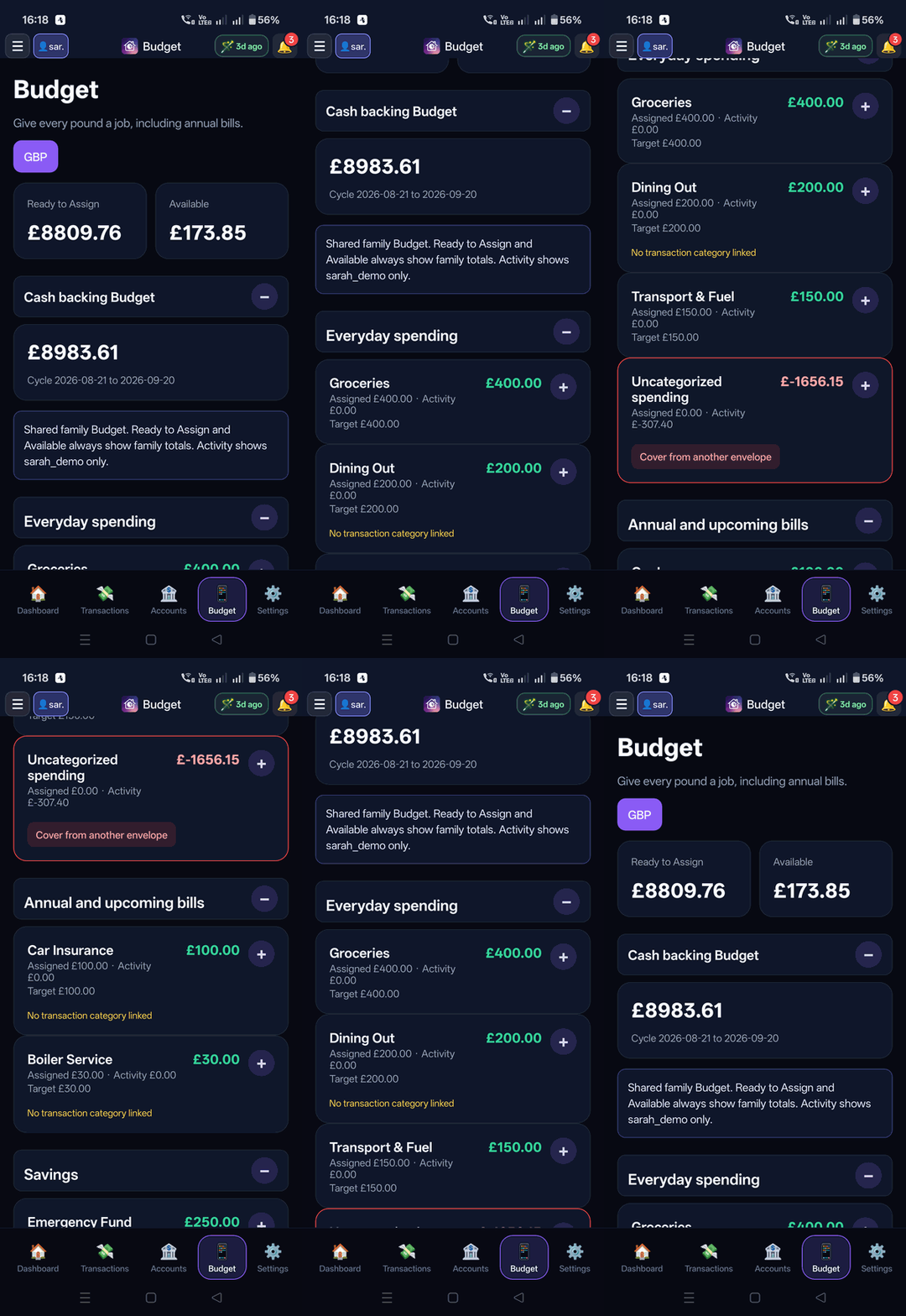
✨ Native Mobile Budget Capabilities:
- Ready to Assign Hero Banner: Prominently displays your remaining unassigned cash in glowing emerald (or warns if over-allocated) with quick funding shortcuts.
- 1-Tap Quick Assignment: Tap on any envelope card to allocate cash, adjust targets, or view recent transaction activity.
- Move Money Modal: Easily shift funds between two envelopes with zero bank transactions and zero mathematical friction.
- Collapsible Envelope Groups: Smooth touch accordions organize envelopes into Everyday Spending, Annual Bills, Savings Goals, Credit Cards, and Buffers.
- Target Progress Badges: Visual indicators show target completion status (e.g.
£150 / £200 funded) and due date countdowns. - Multi-Member Activity Lens: Filter by
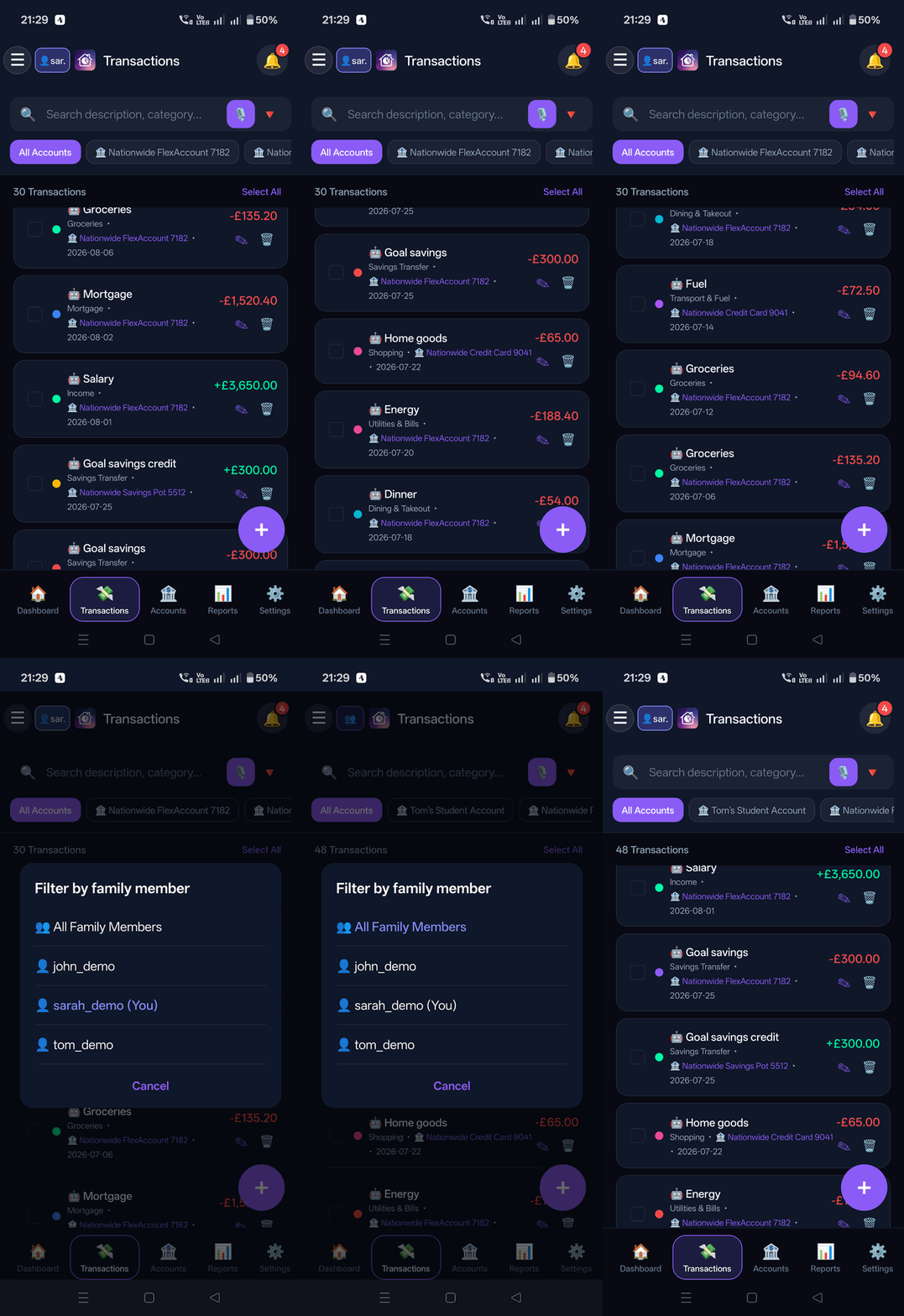
👤 Sarah,👤 John, or👥 Allto audit who spent from shared family envelopes without altering family available balances.
How to Open Budget on Mobile:
- In the mobile app, tap the Budget tab in the navigation menu (or access via Reports).
- Assign unallocated cash until Ready to Assign is £0.00.
- Tap "Move Money" whenever you need to cover overspending between categories.
6. Interactive Charts
Interactive financial charts designed for responsive touch interaction:
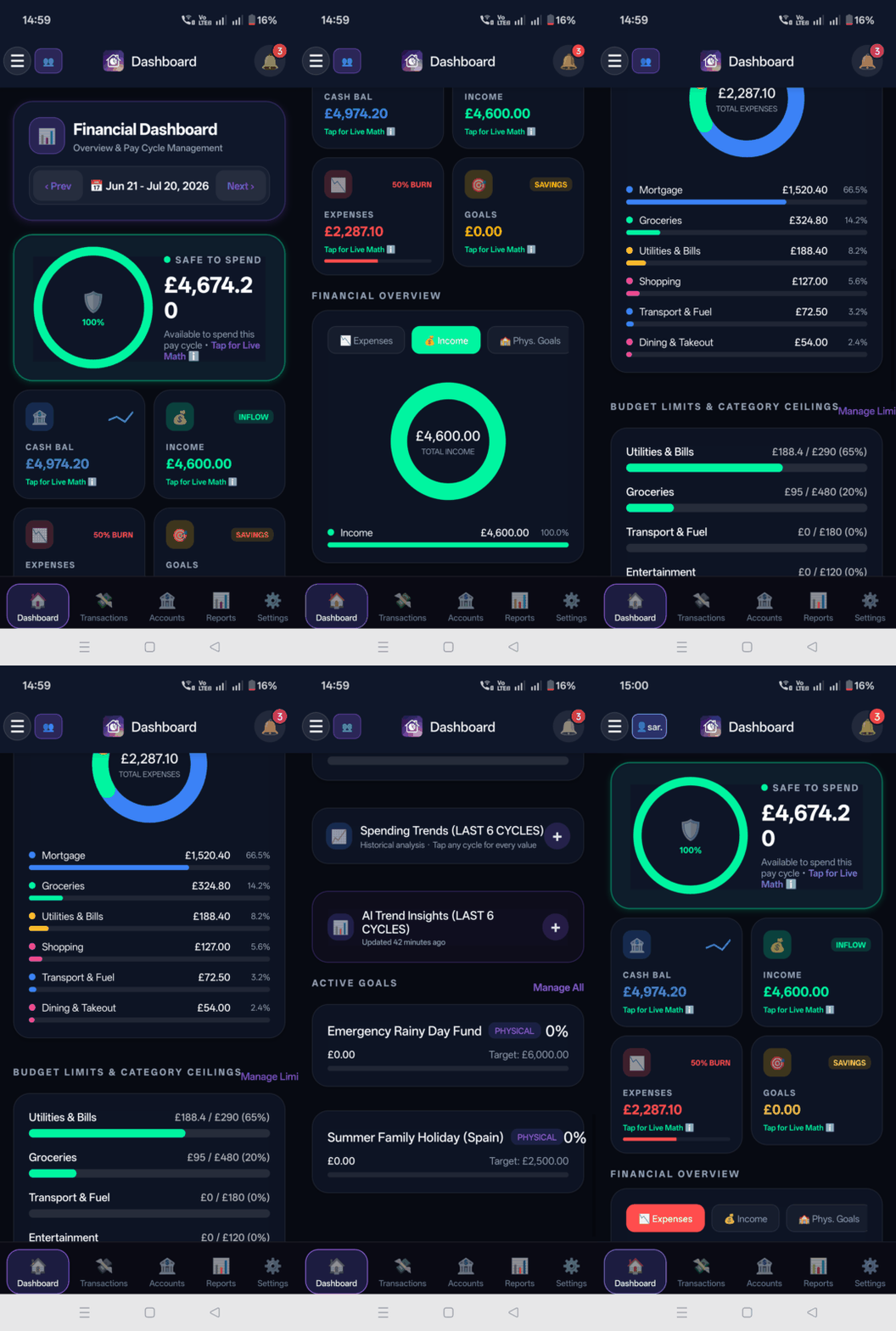
- Cash Flow Sparklines: Real-time mini sparklines in the dashboard header.
- Radial Category Donut: Smooth touch-enabled category breakdowns.
- Multi-Cycle Spending Trend Lines: Touch and scrub across historical pay cycles.
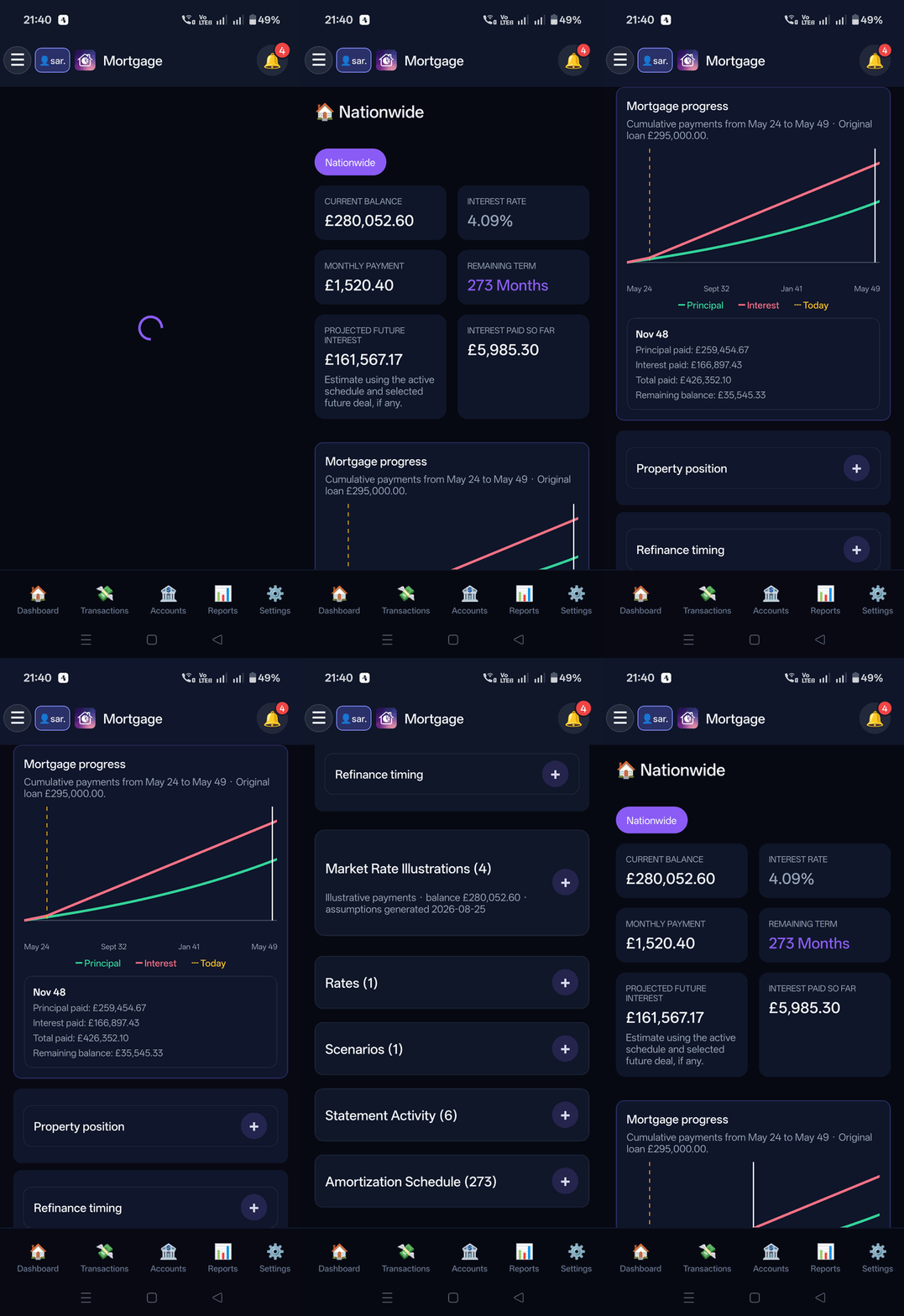
- Interactive Mortgage Amortization: Scrub along your loan repayment curve.
7. Hands-Free Voice Commands
Family Budget Tracker features a fast, deterministic voice command engine on both Web and Mobile. Tap the floating microphone button on the Transactions screen to speak natural commands.
Every voice command must start with exactly one action verb:
Add, Remove, or Filter. The microphone captures speech, displays a live transcript under "What I heard", and automatically submits your command approximately 2.5 seconds after you pause speaking.
1. ➕ Add Commands (Expense & Income Creation)
Speak an amount, currency, and merchant or description. The deterministic parser resolves details against your accounts and transaction history:
Add £20 Costa Coffee(Short form: auto-detects today's date, your primary checking account, and categorizes as Dining Out / Coffee from merchant history)Add £60 grocery Sainsburys to Barclays debit on 27 July(Full form: explicitly sets category, merchant, account, and date)Add £250 freelance payment to Chase(Recognizes income terms like salary, refund, payment, or credit to set type to Income)
What Happens on Add: The app opens the Add Transaction Modal with the fields pre-populated for visual review (Date, Amount, Account, Category, Description). You can verify or tweak any values before tapping "Add Transaction" to save. Voice commands never write transactions silently in the background.
2. 🗑️ Remove Commands (Single vs Multiple Matches)
To target a transaction for removal, voice commands require an exact amount with currency plus either a date or merchant description:
Remove £1 Counter CreditRemove £81.50 Sainsbury on 20 AugustRemove £40 Sainsburys on 27 July
What Happens on Remove:
- Single Match Found: Closes the voice panel and immediately opens the transaction preview modal for that exact record. To delete, you must tap the trash icon and confirm the delete prompt.
- Multiple Transactions Match (Disambiguation Flow): If multiple transactions share the same amount and criteria (for example, two £1 counter credits or duplicate coffee purchases), the system opens a "Choose transaction (N matches)" dialog. Each matching card shows the date, merchant, exact amount, and account name. Tapping a card opens its preview modal for manual review.
- Safety Rule: Voice interpretation never deletes a transaction automatically. Destructive deletion strictly requires manual confirmation.
3. 🔍 Filter Commands (Multi-Dimension Ledger Search)
Dynamically filter and sort the transaction feed without leaving your view or clicking multiple dropdowns:
Filter today's transactions(Filters by today's date)Filter source notification(Filters transactions captured via real-time bank push notifications)Filter description Vanguard(Searches descriptions and merchant names)Filter description Sainsbury category groceries account Barclays debit July £50(Combines account, category, merchant, date range, and minimum amount with AND semantics)Filter all(Resets all active filters to view the full ledger)
What Happens on Filter: The ledger instantly updates with the parsed filters applied across your accounts, categories, sources, and dates. The app automatically scrolls to the first matching transaction in your feed, and displays a 1-tap "Clear voice filters" button to restore the default view.
8. In-App Updates
Updates come through Google Play. When Google Play reports an update for your device, the app offers it from its flexible update prompt. You can also update from the Google Play listing.
Need Mobile Help?
Email our mobile engineering team at support@getdigraw.com.