✨ Magic Drop & Gmail Automation Guide
Set up assisted statement ingestion through a Google Drive folder or Gmail filter. Supported files are processed and reconciled, with review required when extraction or balances are uncertain.
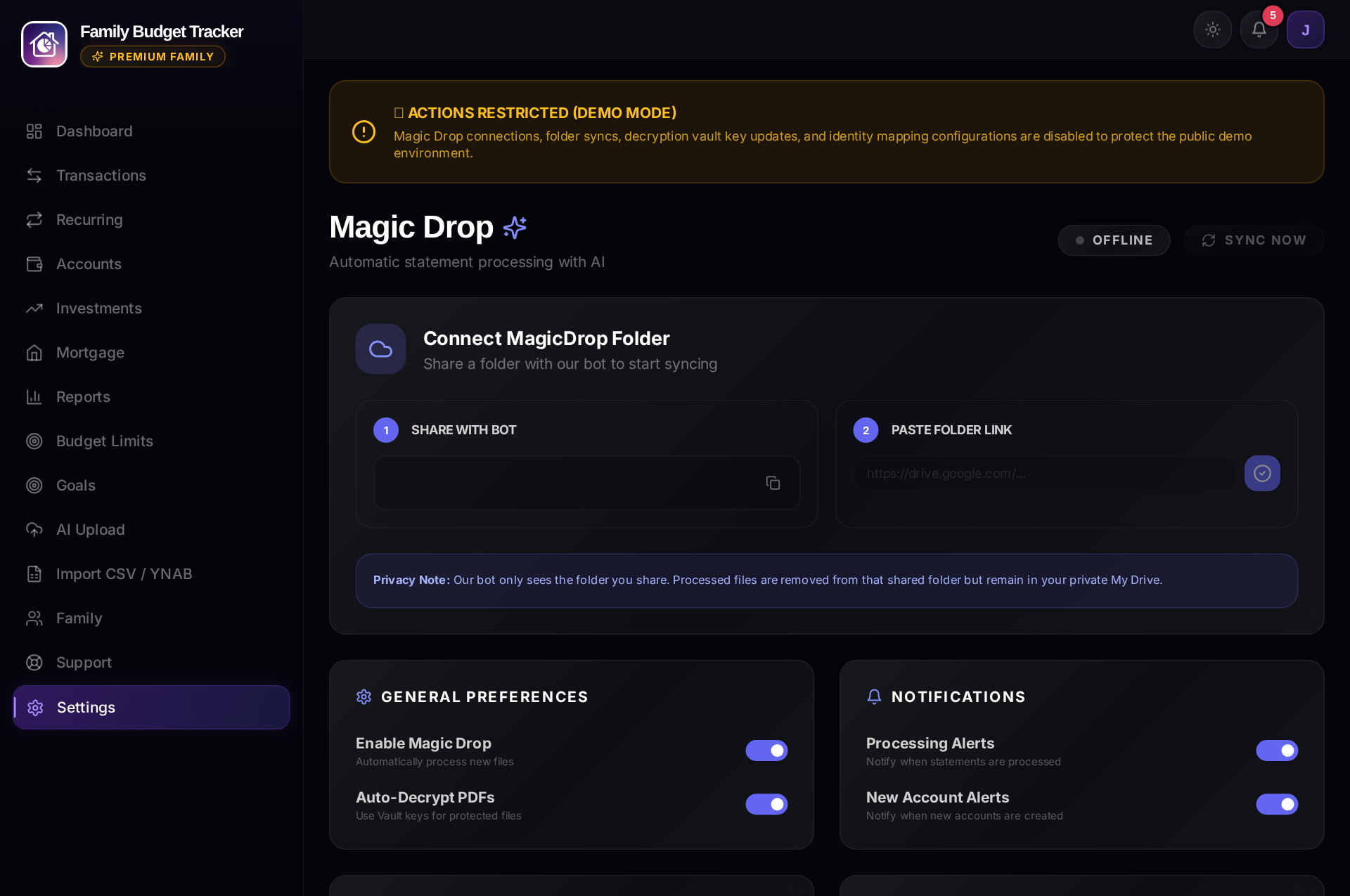
1. How Magic Drop Works
Magic Drop is an automated background ingestion engine that monitors your designated cloud storage:
- Every 60 seconds, the background worker scans your shared folder for new PDF or image statements.
- Supported files can be decrypted with a password from your vault, processed with Google Gemini, and checked against statement balances.
- Successfully handled files can be moved to a
Processed/subfolder according to the configured post-processing action.
2. Google Drive Setup (3 Easy Steps)
- Create a new folder in your Google Drive named "MagicDrop".
- Share the folder with our service bot email (find your unique service bot address in Settings → Magic Drop in the app) as an Editor.
- Copy the URL of your Google Drive folder, paste it into the Folder URL field in Magic Drop Settings, and click "Connect Folder".
3. Gmail Zero-Code Automated Ingestion
Automatically import bank statements delivered directly to your email inbox without any third-party tools.
Step 1: Create Gmail Labels
MagicDrop/Budgeting(for checking and credit card statements)MagicDrop/NonBudgeting(for savings, investment, and mortgage statements)
Step 2: Set Up Gmail Ingestion Apps Script
The provided Google Apps Script runs in your Google account and copies attachments selected by your Gmail filters into the Drive folder you chose to share. Family Budget Tracker does not receive your Gmail password.
- Visit script.google.com and click "New Project".
- Paste the standard Magic Drop ingestion script (available under Settings → Magic Drop → Gmail Setup in the app).
- Set your Google Drive MagicDrop folder ID.
- Add a Time-Driven Trigger to run the script every 10 or 15 minutes.
- Create Gmail filters to auto-apply the
MagicDrop/Budgetinglabel to incoming bank statement emails.
4. Statement Password Vault
Most banks (e.g. Barclays, SBI, HDFC) encrypt PDF statements with your date of birth or PAN number. To enable automated sync while you are away:
- Navigate to Settings → Statement Passwords (Vault).
- Add the password associated with your bank's statement format.
- The password is encrypted at rest and decrypted only when the worker needs to open a matching statement.
5. Folder-Level Service Account Access
The service account can access the specific Drive folder you share with it. It does not receive your Google account credentials or general Gmail inbox access. You can revoke folder access in Google Drive permissions.
6. Live Header Status Pill & Processing Pipeline
Both the Web application and Native Mobile App feature a real-time animated Magic Drop pulse status pill in the navigation header (e.g. 🪄 4m ago or 🪄 65% during active ingestion).
Processing Pipeline Stages:
- Checking Drive: Scans your shared Google Drive folder for newly uploaded PDF or CSV statements.
- Downloading: Retrieves the selected statement into temporary processing storage.
- Validating & Decrypting: Verifies file structure and unlocks encrypted bank PDFs using your AES-256 password vault.
- Identifying Layout: The extraction service identifies statement periods, account sections, and supported layouts.
- Extracting Data: Parses multi-currency transactions, investment holdings, or mortgage balance schedules.
- Saving and reconciling: Saves confirmed genuine rows, checks duplicates, and validates closing figures. A mismatch is routed to review without creating a balancing transaction.
- Finishing: Updates application status and the affected financial views after processing completes.
Need Setup Support?
Email our integration support at support@getdigraw.com.